After a recent conference presentation I was talking to an attendee about including live video in screencasts. While it is currently not possible in Explain Everything, there are definitely powerful ways to mix screencast annotation videos with live video using Explain Everything and iMovie for the iPad.
Below is a video that starts with a photograph and some simple annotations (typed text and an arrow). This video was exported without the audio to the Photo Roll. Next, I used the iPad camera to film a few seconds of live footage. Finally, in iMovie for the iPad I linked the Explain Everything movie with the live movie and added some sound effects for fun.
Below is a video showing how to use the Insert Web Browser tool to access your Google Docs files and then create a screencast with annotations on top of those materials.
How to do it:
1) Start a New Project
2) Insert a Web Browser
3) Enter http://docs.google.com in the address bar
4) Enter your Google Docs username and password and sign in
5) Switch to the 'Desktop' mode of Google Docs
6) For Documents and Spreadsheets, open up the file and begin recording. Annotations and scrolling will be captured. Text changes to the Google document will not be recorded in real time.
7) For Presentations, you first need to 'Download' the file as a PDF or PPT and then begin recording. To download the file select the check box next to the presentation, click More, click Download, and then change the drop down value to PDF or PPT. The presentation will open as a scrolling document that will work with Explain Everything's Web Browser recorder.
NEW YORK, NY - APRIL 25th 2012: Explain Everything has added integration with Box as it continues to be one of the most flexible and open-ended design tools for the iPad. Users can create dynamic and interactive lessons, activities, assessments, tutorials, and meeting materials by bringing in materials from their Box account, using Explain Everything's flexible and integrated design, and then saving those materials back in a Box account. This integration recognizes Box's commitment to collaboration and creativity when dealing with increasingly mobile work and learning spaces.
Explain Everything can also be used as an interactive whiteboard using the iPad2 video display or by connecting to an Apple TV. This integration will open up myriad possibilities for users as they seek ways to connect their different applications and optimize workflows when using the iPad.
"Box has been a pioneer for quite some time in cloud based business collaboration," said Reshan Richards, Explain Everything Co-Creator. "As soon as we learned about Box's plans for OneCloud, we knew that we wanted to get on board right away. Production of, management of, and collaboration on digital resources has been a significant challenge with mobile devices. Box OneCloud is both efficient and elegant."
Regularly in the top 50 of paid Educational iPad apps in the US, Canada, Australia, Finland, and the UK, including holding the #1 spot in several of those markets at times, Explain Everything is seeing tremendous growth in both education and business markets.
MorrisCooke - iOS development studio, working together with idea-makers to create innovative apps. Explain Everything is based on the MorrisCooke Interactive Engine used in PhotoPuppet HD for iPad, PhotoPuppet Go for iPhone, and VideoPuppet for iPhone animation apps.
The Constructivist Toolkit, LLC collaborated with MorrisCooke to help connect visual and functional designs to both current educational research and the practical realities of learning settings. The Constructivist Toolkit's Founder, Reshan Richards, is a doctoral candidate at Teachers College, Columbia University where he also received his B.A. He has an Ed.M from Harvard University and is currently the Director of Educational Technology at a school in New Jersey.
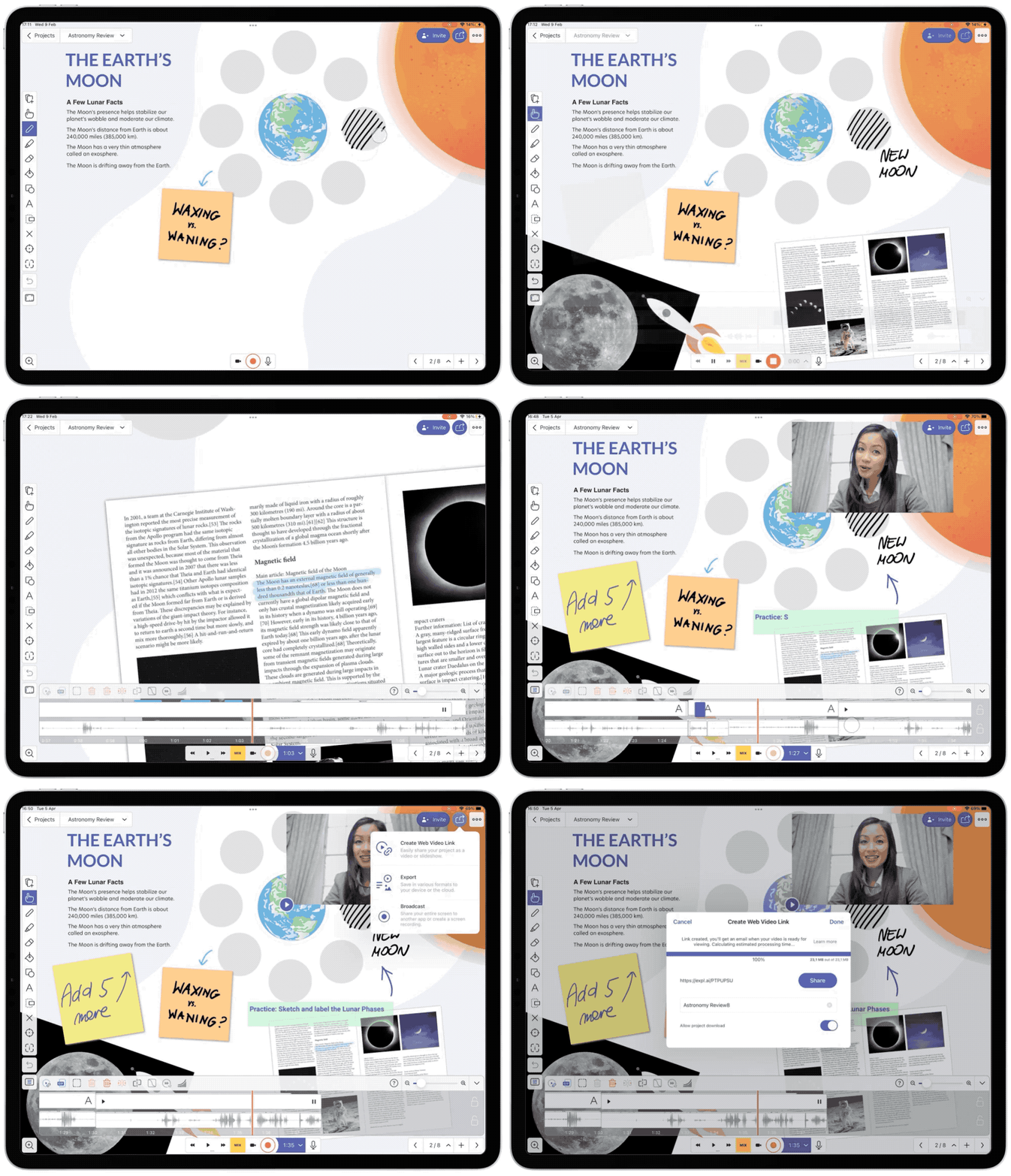
Below is a video demoing some new pointers that we will be adding to the Laser Pointer button in our next update. The video was made in Explain Everything on an iPad3. The sequence where you see the EE interface and menus are simply iPad screenshots strung together with 1 second recordings. The MP4 was exported without audio, and then the music was added using the iMovie app for iPad and the final product was exported to YouTube.
Here is a user-submitted tutorial for using the Adobe Connect iPad App. The tutorial was made using Explain Everything. The producer used a combination of texts, images, and iPad screenshots.
"Adobe Connect iPad app guide for web conferencing. Target audience: meeting hosts. 5 min. Created by Roy Bowery, Advanced Learning Center, University of Memphis. Explain Everything made this tutorial very easy to do, completely from my iPad 1.
Here is a short tutorial video for using Explain Everything's laser pointer feature.
Our latest update is now available in the App Store. Thanks to the many users who have reported errors, a multitude of bug fixes have been made including incorrect positions of objects after saving project, Dropbox download and upload errors, pan&zoom problems, line object thickness error, and more.
We have also done a major update to the draw tool which should be a lot smoother now (see below for quick comparison video). Yiu can turn off the new 'drawing smoothing' in the Preferences menu, especially if it impacts the way that older projects play back.
We are also putting the finishing touches on our Retina-display ready graphics for iPad 3 users. That update will be available soon.
Other highlights include:
Insert Website and Insert Photo buttons combined into single menu
Edit text color in text object
Default font changed to Arial
Behind the scenes updates to make projects more stable